What’s New in V11.1
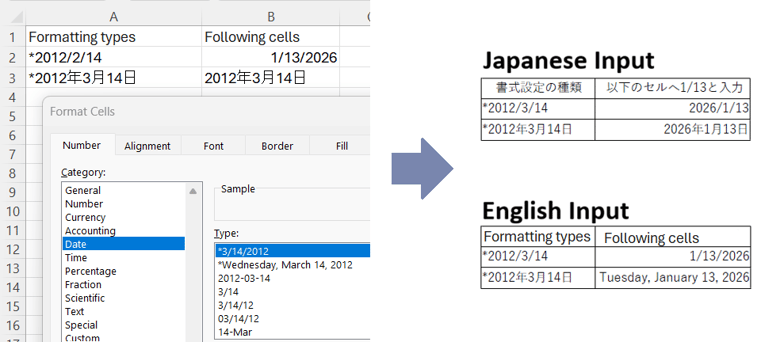
We have improved layout reproducibility by reviewing and updating the calculation method for Excel cell row height and column width.
Comparison of conversion results between OSDC V11.0 and OSDC V11.1
The following compares the original Excel data (.xlsx) with PDF output produced by OSDC V11.0 and OSDC V11.1.
Comparative usage data (Source: Digital Agency, Appendix “Counter DXSaaS Requirements Definition Document”)
URL: Download XLSX
Examples (Pages 1–3). From left: “Save Excel to PDF”, “OSDC V11.0”, “OSDC V11.1”.
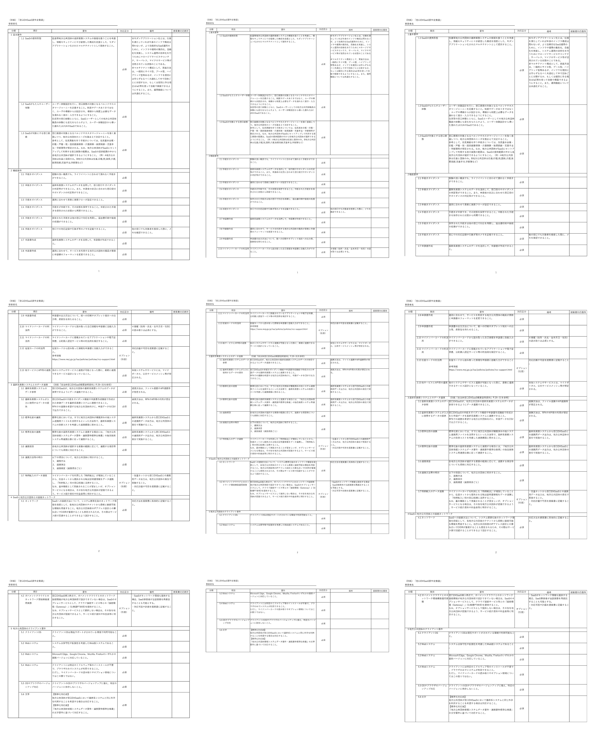
Compared to V11.0, V11.1 improves how many rows fit on a page by changing the row-height calculation method. Although page 2 layout may vary depending on the first row, page-break positions for the table on pages 2–3 and conversion accuracy on page 3 have been improved.
Examples (Pages 4–5). From left: “Save Excel to PDF”, “OSDC V11.0”, “OSDC V11.1”.
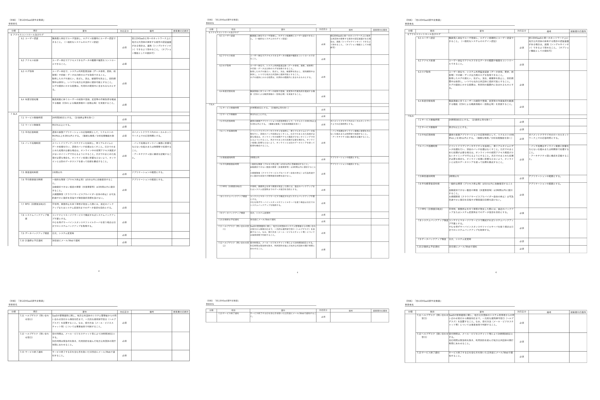
Reproducibility of both the number of lines and the page-break positions has been improved on pages 4–5.
“xls-oldcompat-rowcolcalc” attribute in the Option Setting File
Because the row-height and column-width calculation process has changed, results may differ from OSDC V11.0 and earlier. To produce results compatible with V11.0 and earlier, specify the xls-oldcompat-rowcolcalc attribute in the option setting file.
<?xml version="1.0"?>
<formatter-config>
  <dfv-settings>
    <xls-settings xls-oldcompat-rowcolcalc="true">
    </xls-settings>
  </dfv-settings>
</formatter-config>
Limitations
dhccmd -d sec3.docxWe have enhanced rendering for WordArt text effects when text is transformed inside shapes.
Comparison of WordArt rendering between OSDC V11.0 and OSDC V11.1
The following shows differences when converting WordArt created in PowerPoint (.pptx) using OSDC V11.0 versus OSDC V11.1.
Created in PowerPoint (PPTX)
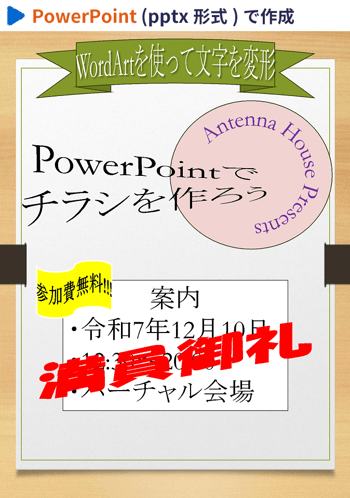
Rendered with OSDC V11.0
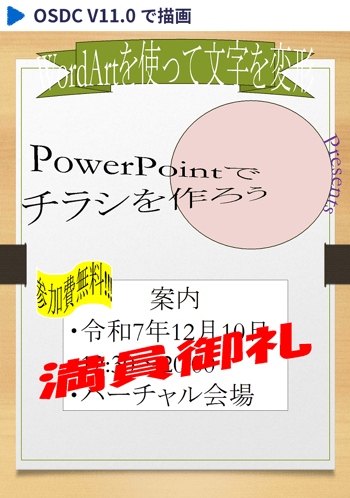
Rendered with OSDC V11.1
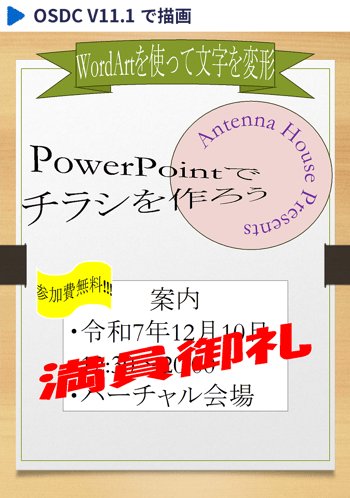
For details on WordArt Transform conversion behavior and known limitations, see: New Features and Changes in V11.0: Improved WordArt Display .
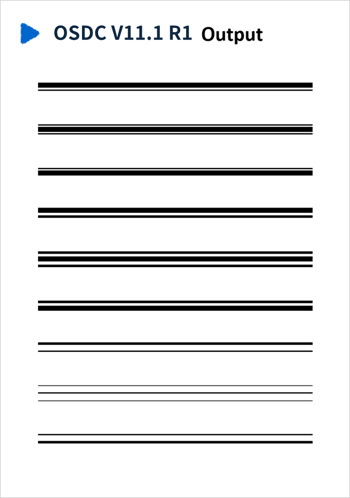
We refined rendering to better reproduce border designs in Word (.docx) that combine lines of different thicknesses.
Comparison of rendering between OSDC V11.0 and OSDC V11.1
The following shows differences when converting Word content (.docx) using OSDC V11.0 versus OSDC V11.1.
Created in Word (DOCX)
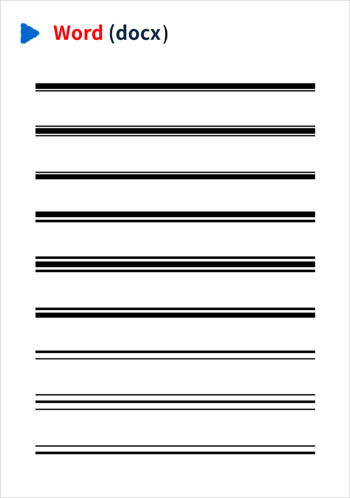
Rendered with OSDC V11.0
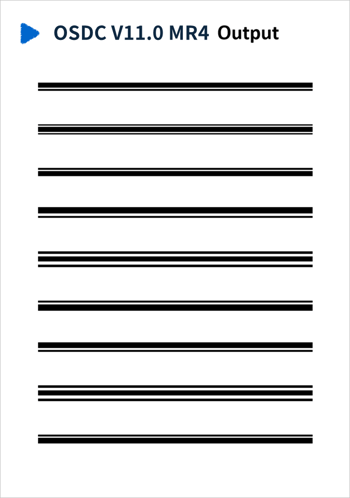
Rendered with OSDC V11.1
Limitations
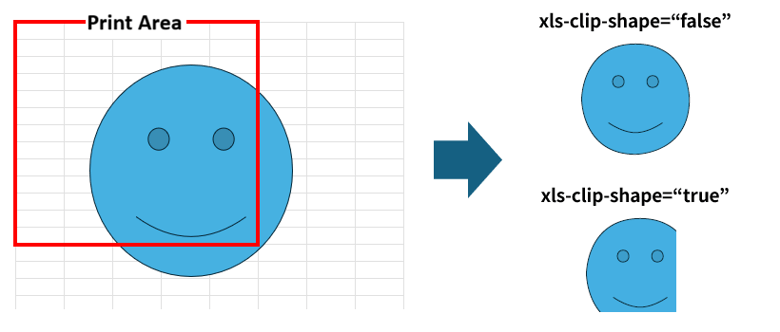
When a figure or graphic in an Excel cell extends beyond the print range, the xls-clip-shape attribute in the Option Setting File determines how it is output:
Features in earlier versions
For features introduced in versions prior to V11.1, please refer to the previous release notes page.
For more information on the features implemented in previous versions of Office Server Document Converter, see the following links.



Awards


Proud Member



Contact
Privacy Policy | © 2026 Antenna House, Inc.